
A baby monitor inside your TV
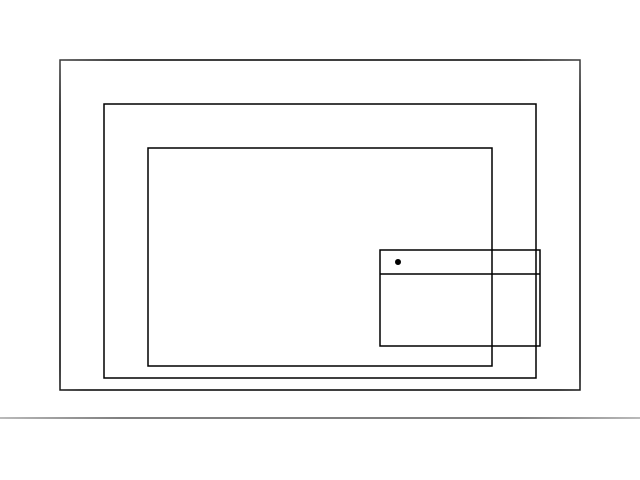
The camera from the nursery, the yard or the front gate appears over whatever is on screen: in a small window in the corner, or full screen. The box watches the picture itself and calls you with a sound as soon as something moves in it.
Why watch a camera on the TV
A phone has to be held, woken and unlocked. The TV in the room is already on — and the camera on it asks for nothing but the remote.
- The child is asleep
- The cot sits in the corner of the screen while the film plays. The moment the child stirs, the box flashes the window frame and sounds an alarm — even if you took the window off the screen entirely.
- Yard, gate, front door
- You can see who came without getting off the sofa or walking to the monitor in the hallway. A pan-tilt camera can be swept across the yard with the remote.
- Keeping an eye on family
- An older relative's room at the other end of the house: a window on the screen and a sound if something is wrong. Nothing to wear and nothing to charge — the camera and the box both run off the mains.
- Pets and the workshop
- A puppy alone in the room, the boiler in the basement, the run in the yard. You can add several cameras and switch between them from the quick menu.
How it works
Four steps, all of them from the remote. No computer, no account, no cloud subscription for the camera.
Put the camera on your network
The camera is set up in its own mobile app, exactly as you would without a TV. One thing matters: the camera and the box must end up on the same home network — the same router, over Wi-Fi or by cable.
The box finds it by itself
Open Settings → Cameras: the screen asks the network straight away and lists every camera that answered — with its name, model and an address like 192.168.1.147. No password is needed to search: the camera simply introduces itself to its neighbours.
Enter the camera's login and password
A camera only hands the picture to its own: the login (admin, on most of them) and the password are the same ones you use from your phone. Some models keep a separate account for third-party apps — you create it in the camera app, in the section about RTSP.
Watch it on the TV
The camera turns up in the channel list in a group of its own, “Cameras”. Everything after that is the remote: a small window over the picture, full screen with sound, pan and tilt with the D-pad, and monitor mode with an alarm on motion.
What the camera does on the TV
This is not “one more channel with a picture”. A baby monitor has to do the thing it is switched on for at night: stay out of the way, and still not let you miss anything.
- A window over the picture
- The camera lives in the corner of the screen while the programme plays. The small window stays muted on purpose — the sound comes on when you make the camera full screen, and then you hear the room.
- Motion detection
- The box compares frames with one another and lights up the window frame as soon as something in the picture changes. The comparison happens on the box itself — no frames are sent anywhere.
- An alarm you can actually hear
- The alarm uses the box's own system tone — over the TV rather than instead of it, and with its own volume. You hear it from the next room even with a film playing.
- It watches without the window
- The window can be taken off the screen and the watching carries on. You get the film undisturbed, and the box calls you itself.
- It will not go quiet unnoticed
- If the camera drops off the network, the box quietly tries to bring it back, and when that fails it says so out loud and on screen. Going silently blind is the worst thing a baby monitor can do.
- Everything stays at home
- The stream goes from the camera to the box directly, across your own network. There is no server of ours in that chain: we neither see nor store what the camera sees.
Will my camera work
The quickest check is its mobile app: if the camera settings mention ONVIF or RTSP anywhere, it will work.
| Which camera | How it is added | Steering with the remote | Motion detection |
|---|---|---|---|
| A camera with ONVIFEasiestThe commonest case and the easiest: the box finds such a camera on the network by itself, asks only for the login and password, and — if the camera has motors — lets you steer it with the remote. | The box finds it itself | Yes, if the camera has motors | Works |
| A camera with RTSPIt gives out video but does not announce itself on the network: you add it by hand, as a line of address. Watching, full screen and motion detection all work the same; only steering is missing. | By hand, as a line of address | No | Works |
| Cloud onlyCameras that show the picture solely in their own app will give the box nothing. But on many models RTSP is merely switched off at the factory: look in the camera app for an RTSP toggle or an entry about an account for third-party software. | Switch RTSP on in the camera app first | — | — |
One tip if the small window stutters: point the box at the camera's second stream (the substream, sometimes “extra stream”). It is smaller and meant for exactly this kind of viewing, and the box has a far easier time of it — especially when the main stream is 4K.
Common questions
- Do I need the internet to watch the camera?
- Not for the picture itself. The camera and the box talk inside your home network, so the monitor keeps working even when your provider is down. The box needs the internet only now and then, to check the subscription.
- Is the video sent anywhere?
- No. The stream goes from the camera straight to the box across your network, and motion detection happens on the box as well. Nothing from the camera ever reaches our servers — there is nowhere there to keep it.
- Can I hear what is happening in the room?
- Yes, if the camera sends sound. The small window is muted deliberately — otherwise it would talk over the programme on the big screen. Make the camera full screen and the room comes through.
- How many cameras can I add?
- As many as you like: they all gather in the “Cameras” group and switch from the quick menu. One at a time is shown over the picture — decoding two streams at once is hard on a TV box, and four windows on a TV are unwatchable anyway.
- The box did not find my camera. What now?
- First check that the camera and the box are on the same network: the router's guest Wi-Fi is a common culprit, as devices on it cannot see each other. If the network is the same and the camera still stays silent, add it by hand with its RTSP address — that works with cameras that never announce themselves.
- Will the alarm go off all night?
- The detector looks at changes in the picture, so at night it can be caught by the moment the camera switches to infrared, or by headlights sweeping the room. It will not beep on and on: the alarm repeats no more than once a minute, and the window frame shows you exactly what the box counts as motion.
- Is the baby monitor part of the free version?
- No, it is a premium feature, like catch-up and recording. The subscription belongs to the box, not to the cameras: however many cameras you add, you pay once per box.
The words, briefly
- RTSP
- The language network cameras use to hand out live video. It was invented for surveillance and nearly every player understands it; this is how the box takes the picture from the camera — directly, with nobody in between.
- ONVIF
- An agreement between manufacturers on how cameras introduce themselves and take commands. Thanks to it the box can ask “who is on this network”, get an answer from a camera of any brand, and then ask that camera for its stream address and its motors.
- PiP, picture-in-picture
- A small window over a big image. In tvista it holds either a second TV channel or the baby monitor camera.
- PTZ
- Pan, tilt and zoom on cameras with motors. In tvista such cameras are steered with the D-pad on the remote.
At a glance
- What it is
- A network camera on the TV box screen: in a small window over the picture, or full screen.
- Cameras
- With ONVIF — found on the home network automatically. With RTSP — added by hand, by the stream address.
- Network
- The camera and the box sit on the same local network. The video goes directly between them and never leaves the house.
- Alerts
- Motion detection runs on the box. The alarm is a system tone played over the TV sound.
- Control
- The remote: D-pad and OK. A pan-tilt camera is steered with the arrows.
- Edition
- Premium. The subscription belongs to the box; the number of cameras is not limited.
- Requirements
- An Android TV box, version 5.0 or newer.
Put the camera on your TV
The app installs on an Android TV box and the camera connects in a few minutes — if it is already on the wall, there is nothing else to buy.